How to Build Your Own AI Stock Analysis Assistant with OpenClaw: A Step-by-Step Guide
Have you ever felt overwhelmed by the sheer volume of stock market data? You stare at endless candlestick charts, scroll through pages of financial news, and try to decipher complex earnings reports, only to end up more confused than when you started. I’ve been there. It’s like trying to drink from a firehose.
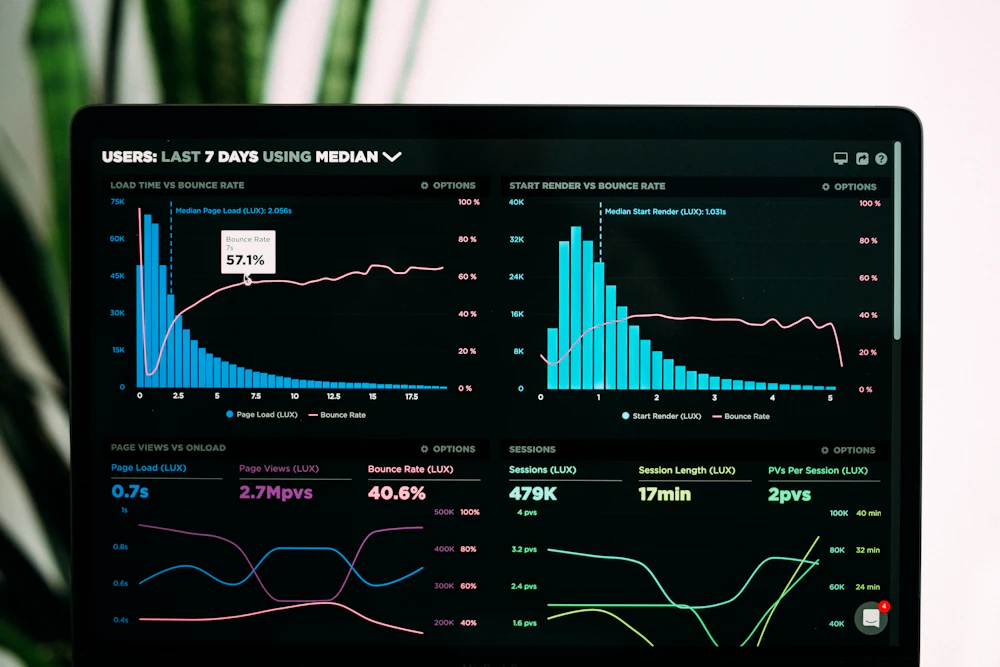
But what if you could have a personal, expert analyst available 24/7? An assistant that doesn’t just fetch data but actually understands it, summarizes the news, and gives you a sentiment analysis in plain English?
Today, I’m going to show you exactly how to build that. By combining OpenClaw (a powerful AI automation platform) with ChatGPT, we will create a fully functional Stock Analysis Assistant. No coding experience is required—just a willingness to learn.
By the end of this guide, you will have a tool that takes a stock ticker as input and outputs a comprehensive investment report.
Preparation: What You Need to Get Started
Before we dive into the building process, let’s make sure we have all our ingredients ready. Think of this as gathering your tools before you start cooking a gourmet meal.
Here is the checklist:
- OpenClaw Account: You will need access to the OpenClaw platform. (We will use the latest browser-based version for this tutorial).
- OpenAI API Key: Since OpenClaw acts as the “hands” and “flow,” we need ChatGPT to act as the “brain.” You can get this from the OpenAI platform.
- A Web Browser: Google Chrome or Microsoft Edge are recommended for the best compatibility.
- Target Stock Tickers: Have a few stock symbols in mind (e.g., AAPL, TSLA, NVDA) to test your new assistant.
💡 Expert Tip: Keep your API key safe! Never share it publicly. Treat it like your bank password.
Step-by-Step Tutorial: Building the Assistant
We will break this down into four logical steps. Don’t rush; the beauty of OpenClaw is in the workflow logic.
Step 1: Setting Up Your OpenClaw Workspace
First, we need to create a clean environment for our assistant.
- Log in to your OpenClaw dashboard.
- Click on
+ New Projectand name it “My Stock Analyst.” - Select the “Blank Workflow” template.
My Commentary: Starting with a blank canvas can feel intimidating, but it gives you total control. OpenClaw uses a node-based interface, which is just a fancy way of saying you connect blocks (like Lego bricks) to create a chain of actions.
Step 2: Creating the Input Trigger
Every AI needs a trigger to start working. We want to be able to type a stock name to kick things off.
- Look for the “Trigger” menu on the left sidebar.
- Drag and drop the
Manual Inputnode onto the canvas. - Click on the node to configure it. Set the variable name to
stock_ticker. - Add a description: “Enter the stock symbol here (e.g., AAPL).”
Why this matters: This variable
stock_ticker is the passport that your data will carry through the entire workflow. Without it, the AI won’t know which stock to analyze.Step 3: Fetching the Data (The “Claw”)
Now we need to get the real-world data. OpenClaw has excellent integrations for financial data.
- In the “Integrations” menu, search for
Yahoo FinanceorAlpha Vantage. (For this guide, we’ll use the genericWeb Scrapertool to demonstrate the principle, but you can use specific API nodes). - Drag the
HTTP Requestnode onto the canvas. - Connect the
Manual Inputnode to theHTTP Requestnode. - Configure the URL to dynamically pull data based on your input.
- URL:
https://finance.yahoo.com/quote/{{stock_ticker}} - Method:
GET
- URL:
My Commentary: This is where the magic happens. By using
{{stock_ticker}} in the URL, we are telling OpenClaw: “Take whatever the user typed, and go look it up on Yahoo Finance.”Step 4: Analyzing with ChatGPT
We have the raw HTML/data, but it’s messy. We need ChatGPT to clean it up and provide insights.
- Drag the
ChatGPTnode onto the canvas. - Connect the
HTTP Requestnode to theChatGPTnode. - Paste the following System Prompt into the configuration:
You are a senior financial analyst with 20 years of experience. Your task is to analyze the raw financial data provided below.
Extract the current price, market cap, and a summary of the latest news headlines.
Finally, provide a "Sentiment Score" from 1 to 10 (1 being Bearish, 10 being Bullish) based on the news.
Format the output as a clean, professional markdown report.
- In the “User Message” field, map the output from the previous step. It usually looks like
{{HTTP_Request.body}}.
Why this prompt works: We are using a technique called “Role Prompting.” By assigning ChatGPT the persona of a “senior financial analyst,” we prime it to output higher-quality, more structured text than if we just asked “What is this stock?”
Step 5: Final Output
Let’s see the results.
- Drag the
Text OutputorEmailnode to the end. We’ll useText Outputfor now. - Connect the
ChatGPTnode to theText Outputnode. - Map the message content:
{{ChatGPT.message}}.
Click the “Test Run” button in the top right corner. Type
NVDA and watch your assistant build the report.Key Tips & Pitfalls: What I Wish I Knew Earlier
Building AI workflows is an art. Here are some lessons I’ve learned the hard way so you don’t have to.
1. The “Garbage In, Garbage Out” Rule
If the website you are scraping (like Yahoo Finance) changes its layout, your scraper might break.
- Solution: Use specific API nodes (like Alpha Vantage) whenever possible instead of raw scraping. They are more stable.
2. Context Window Limits
ChatGPT has a limit on how much text it can read at once. If you scrape a 10,000-word earnings report, the AI might cut off the end.
- Solution: In the OpenClaw
HTTP Requestsettings, you can often limit the response size or just scrape specific sections (like just the “News” section) rather than the whole page.
3. Hallucinations
AI is smart, but it can be overconfident. It might invent a number if it can’t find one.
- Solution: Always add a line in your prompt: “If you cannot find specific data, state ‘Data not available’ instead of guessing.”
Results and Advanced Ideas
When you run the workflow, you should see a beautifully formatted report appearing in your Output node. It will tell you the price, the news, and give you that sentiment score.
Where to go from here?
Now that you have the basics, here are three ways to supercharge this assistant:
- Add Voice Input: Use OpenClaw’s
Speech-to-Textnode at the start. Now you can just say, “Analyze Apple stock,” and it will work. - Visualize the Data: Instead of just text, send the data to a tool like Python (Matplotlib) or even Midjourney to generate a visual representation of the sentiment.
- Automate It: Change the trigger from “Manual” to “Scheduler.” Set it to run every morning at 8:00 AM and email you the report.
⚠️ Important Disclaimer: This tool is for educational and informational purposes only. It does not constitute financial advice. Always consult with a qualified professional before making investment decisions.
Conclusion and Interaction
Building this Stock Analysis Assistant is just the beginning. Once you understand how to connect OpenClaw’s data fetching capabilities with ChatGPT’s reasoning power, there is no limit to what you can automate.
I want to hear from you:
Which stock market feature would you add to this assistant first? Let me know in the comments below!
Tutorials# AI for Investors# AI Stock Analysis# ChatGPT Finance# Financial Automation# No-Code AI# OpenClaw Tutorial# Stock Market Bot
© Copyright notes
The copyright of the article belongs to the author, please do not reprint without permission.
Related posts



No comments...