How to Create Stunning Posters with Midjourney and ChatGPT: A Beginner’s Guide
Have you ever stared at a blank canvas in Photoshop, feeling overwhelmed by the sheer number of tools, or waited days for a freelance designer to deliver a simple event poster? We’ve all been there. You have a great idea for a summer beach party, a product launch, or a community workshop, but turning that vision into a professional-looking visual feels like a Herculean task.
What if I told you that you could create a high-quality, eye-catching poster in less than 30 minutes without any prior design skills? By combining the linguistic power of ChatGPT with the artistic prowess of Midjourney, you can unlock a workflow that feels like having a professional copywriter and a digital artist sitting right next to you.
In this guide, I will walk you through the exact process of creating a poster from scratch. By the end, you won’t just have a cool image; you’ll have a complete design ready to print or share on social media.
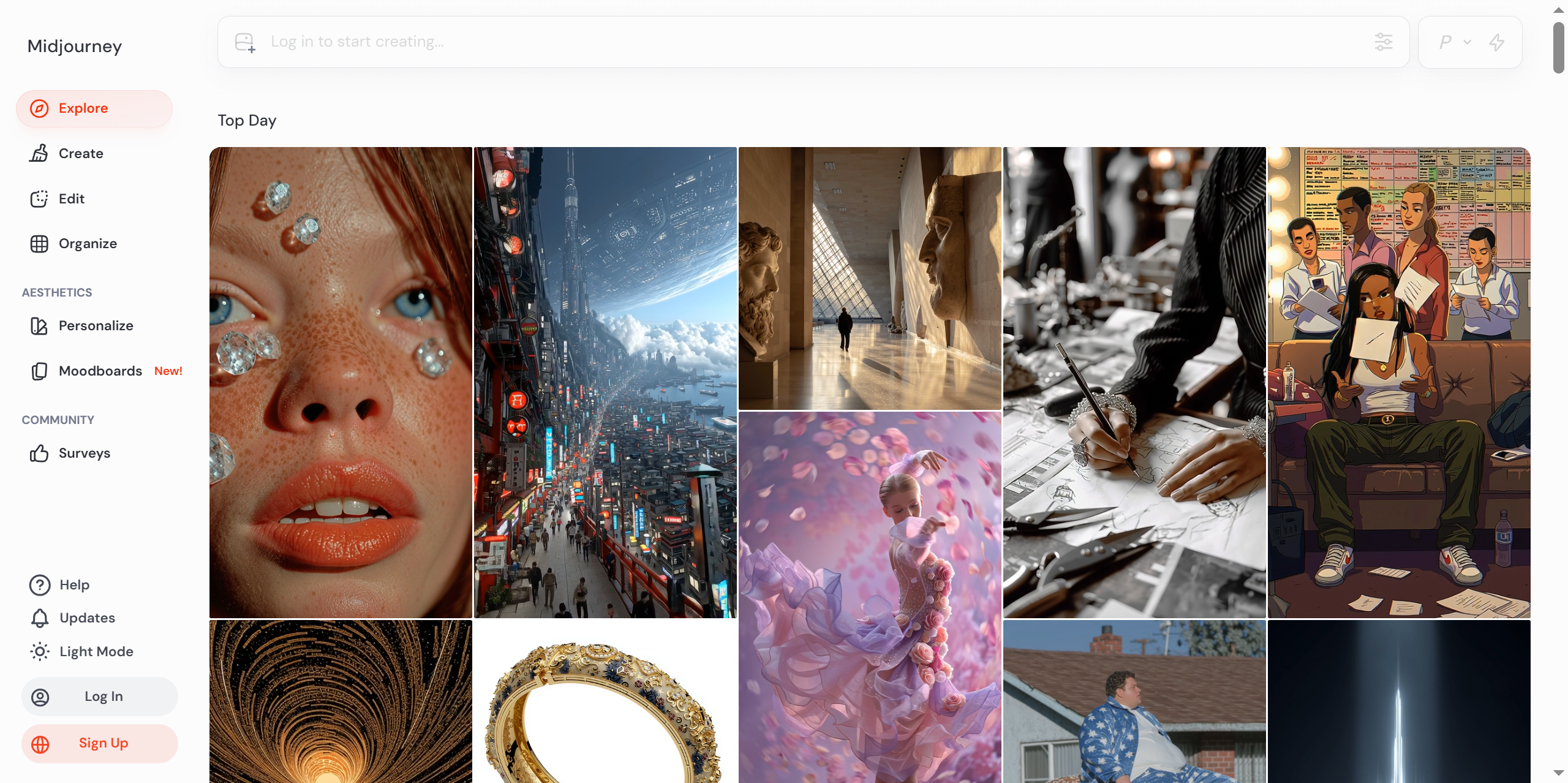
idjourney is a generative artificial intelligence program and service created and hosted by the San Francisco-based “independent research lab” Midjourney, Inc. Midjourney generates images from natural language descriptions, called prompts, similar to OpenAI’s DALL-E and Stability AI’s Stable Diffusion.
Preparation: Getting Your Tools Ready
Before we dive into the creative process, let’s make sure we have everything we need. The good news is that you don’t need expensive software installed on your computer.
Here is your checklist:
- ChatGPT Account: You can use the free version, but the Plus version (GPT-4) is recommended for more nuanced and creative text generation. Sign up at OpenAI’s website.
- Midjourney Account: This runs through Discord. You will need a Discord account and a subscription to Midjourney (Basic plan is fine to start). Join the beta here.
- Canva Account: We will use this for layout and text. The free version is perfectly adequate for our needs. Sign up at Canva.
- A Clear Idea: Know what you want to promote. For this tutorial, we will be creating a poster for a “Retro-Futuristic Jazz Night.”
Step-by-Step Tutorial: From Concept to Poster
We will break this down into three manageable phases: Ideation, Image Generation, and Final Layout.
Step 1: Brainstorming and Copywriting with ChatGPT
First, we need a solid concept and catchy text. Midjourney creates images, but it’s not great at generating readable text. That’s where ChatGPT shines.
The Operation:
Instead of just asking for “jazz poster text,” we assign ChatGPT a persona to get high-quality results.
Prompt Example:
Act as a professional creative director and copywriter for a high-end event marketing agency. I am organizing a "Retro-Futuristic Jazz Night" event. Please provide:
1. A catchy headline.
2. A subheadline with date and time (Saturday, October 28th, 9 PM).
3. A short, evocative description of the vibe (mixing 1920s elegance with cyberpunk neon).
4. A list of visual keywords I can feed into an AI image generator to capture this style.
ChatGPT Output (Example):
- Headline: Neon Nocturne: Jazz 2077
- Subhead: Saturday, Oct 28th @ 9 PM | The Blue Note Lounge
- Description: Where the soul of the 1920s meets the pulse of the future. Experience saxophones and synthesizers in a smoke-filled, neon-lit utopia.
- Visual Keywords: Cyberpunk jazz club, 1920s fashion mixed with futuristic tech, neon pink and blue lighting, smoke and mirrors, saxophone player, cinematic lighting, 8k resolution.
My Take:
Why did we do this? By asking for “visual keywords,” we are bridging the gap between text and image. ChatGPT essentially wrote the prompt for Midjourney for us. This saves time and ensures the style matches the copy.
Step 2: Generating the Visual with Midjourney
Now, let’s paint the picture. We will take the visual keywords from the previous step and translate them into a Midjourney prompt.
The Operation:
Open Discord and go to a Midjourney channel (or your Direct Message with the bot). Use the /imagine command.
Prompt Example:
/imagine prompt: A stunning poster design for a jazz event, a saxophone player wearing a fedora and glowing LED sunglasses, performing on a stage with neon art deco architecture, atmospheric lighting, volumetric fog, cyberpunk color palette of cyan and magenta, highly detailed, photorealistic, 8k, cinematic composition --ar 2:3 --v 6.0 --stylize 250
Breakdown of Parameters:
--ar 2:3: This sets the Aspect Ratio to 2:3, which is the standard vertical size for posters.--v 6.0: This ensures we are using the latest version of the Midjourney model for the best quality.--stylize 250: This adds a bit of artistic flair. Higher numbers make the image more “artistic” but sometimes less literal.
Screenshot Description:
[Imagine a screenshot showing the Discord interface. You see the /imagine command typed out in the input box, and below it, a grid of 4 different variations of the “Cyberpunk Jazz” saxophone player appearing.]
My Take:
Midjourney excels at “vibes.” Notice I didn’t ask for specific text on the poster because MJ usually garbles text. Focus on the atmosphere, lighting, and composition. If the first batch isn’t perfect, use the V buttons (Vary) to get more options or U buttons (Upscale) to save your favorite.
Step 3: Layout and Final Polish with Canva
We have our text (Step 1) and our image (Step 2). Now we marry them.
The Operation:
- Open Canva and create a design with “Custom Dimensions.” Set it to 1500 x 2250 px (a 2:3 ratio).
- Upload your upscaled Midjourney image and set it as the background.
- Create a rectangle overlay, set the color to black, and lower the transparency to ~40%. This ensures our text is readable against the busy background.
- Add the Headline, Subhead, and Description using ChatGPT’s suggestions. Use bold, retro-style fonts (Canva has plenty of free ones like “Montserrat” or “Bebas Neue”).
Screenshot Description:
[Imagine a screenshot of the Canva workspace. The cyberpunk jazz image is in the background. A semi-transparent black layer sits on top. Large, bold white text reading “NEON NOCTURNE” is centered at the top, with smaller details below.]
My Take:
This hybrid approach is the secret sauce. AI generates the heavy visual assets, but a simple drag-and-drop tool gives you the precision control over typography that AI currently lacks. It ensures your poster actually communicates the necessary info (Date/Time) clearly.
Key Tips & Pitfalls to Avoid
As a seasoned AI tool user, I’ve made plenty of mistakes so you don’t have to. Here are my top tips for success.
1. The “Text in Image” Trap
- The Mistake: Trying to force Midjourney to generate the specific words “Live Concert” or “Saturday Night” inside the image.
- The Fix: Don’t do it. Even with V6, it’s hit-or-miss. Always add text in post-production (Canva/Photoshop). Use the AI for the illustration, not the typography.
2. Aspect Ratio Matters
- The Mistake: Generating a square image (
--ar 1:1) and then trying to stretch it to fit a poster. - The Fix: Always generate the image in the final aspect ratio you need. For posters,
--ar 2:3or--ar 9:16(vertical) is best. Stretching ruins resolution and quality.
3. Iteration is Key
- The Mistake: Accepting the first image you generate.
- The Fix: Rarely is the first result perfect. Use the Remix mode (
/imagine prompt [your prompt] --remix) to tweak specific words. Change “saxophone” to “double bass” or “cyan” to “gold” to see how it shifts the mood.
4. Commercial Usage
- The Tip: Be aware of copyright. If you have a paid Midjourney subscription, you generally own the assets you create (check their latest Terms of Service). However, don’t try to generate IP that looks exactly like Mickey Mouse or Darth Vader; the filters will block it, and it’s not legally safe for commercial use.
Results and Next Steps
By following these steps, you now have a “Neon Nocturne: Jazz 2077” poster that looks like it was designed by a top-tier agency. The combination of ChatGPT’s structured brainstorming and Midjourney’s artistic detail allows for a level of speed and creativity that was impossible just a few years ago.
Where to go from here?
- Batch Creation: Now that you have the prompts, generate 10 different background variations and create a series of posters.
- Social Media Adaptation: Use the same prompt but change the aspect ratio to
--ar 16:9to create matching Instagram Story banners. - Advanced Editing: If you are comfortable with Photoshop, try taking the Midjourney image into Photoshop and using the Generative Fill tool to add specific objects (like a cocktail glass) that weren’t in the original prompt.
Conclusion & Interaction
Creating posters with AI doesn’t mean replacing human creativity; it means amplifying it. You are still the director of the movie; AI is just the incredibly fast crew.
I’d love to hear from you: What is the next event or product you want to create a poster for? Drop a comment below and let’s brainstorm the prompt together!
If you found this guide helpful, you might also enjoy these articles:
Tutorials# AI graphic design workflow.# AI poster design# Canva AI integration# ChatGPT for design# how to make a poster with AI# Midjourney prompts for beginners# Midjourney tutorial
© Copyright notes
The copyright of the article belongs to the author, please do not reprint without permission.
Related posts



No comments...